
How to Use Brushly AI
Your comprehensive guide to mastering miniature painting with AI-powered assistance
Contents
🚀Getting Started
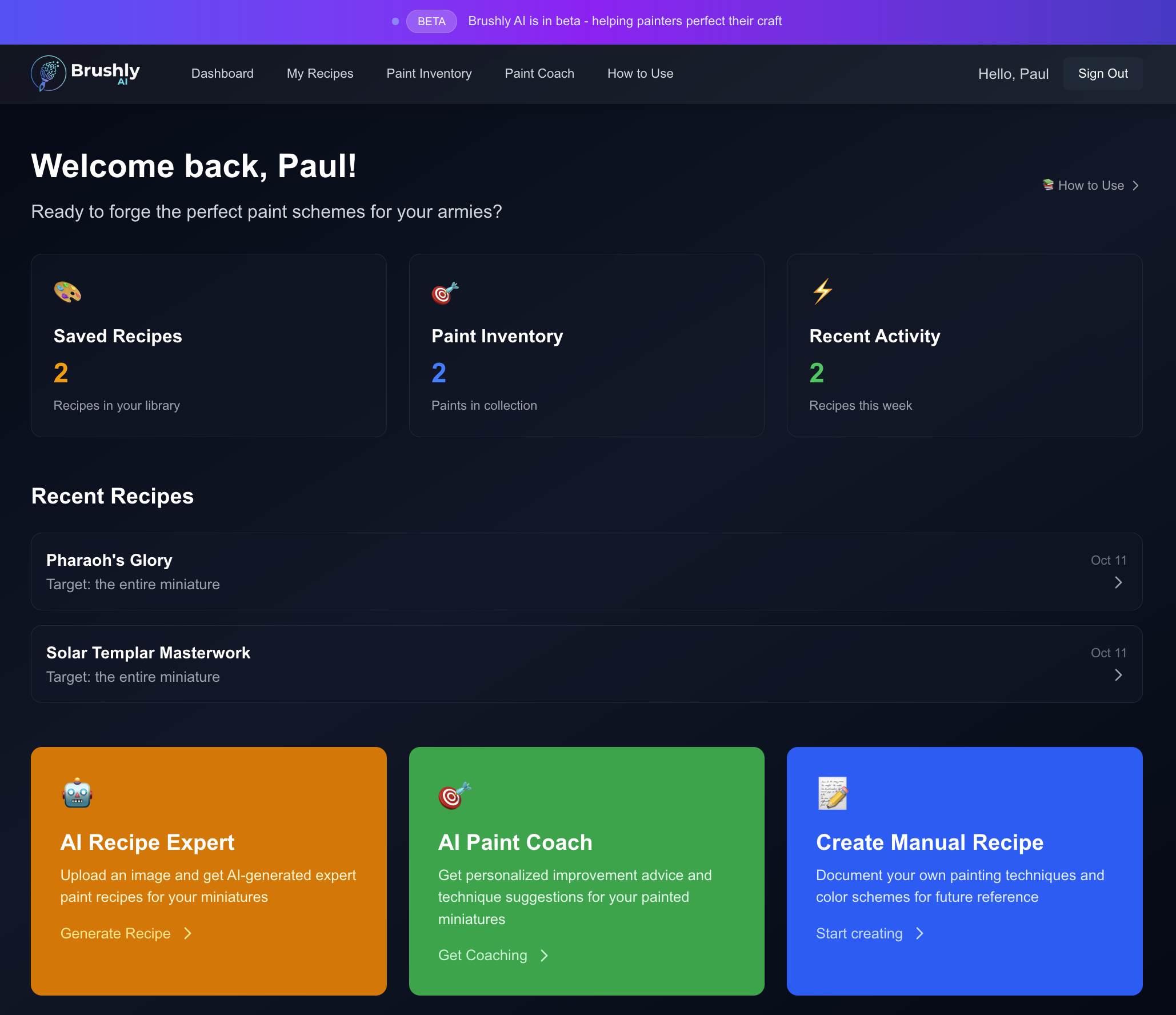
Your personalized dashboard with recipe stats and quick access to all features
1. Sign In
Create your account using Google or GitHub authentication. Your data is securely stored and only accessible to you.
2. Explore the Dashboard
After signing in, you'll see your personalized dashboard with:
- •Recipe count and recent recipes
- •Paint inventory overview
- •Quick access to all major features
3. Choose Your Starting Point
🤖 New to Painting?
Start with the AI Recipe Expert to learn from existing painted miniatures
🎯 Want to Improve?
Use the AI Paint Coach to get personalized feedback on your work
🤖AI Recipe Expert
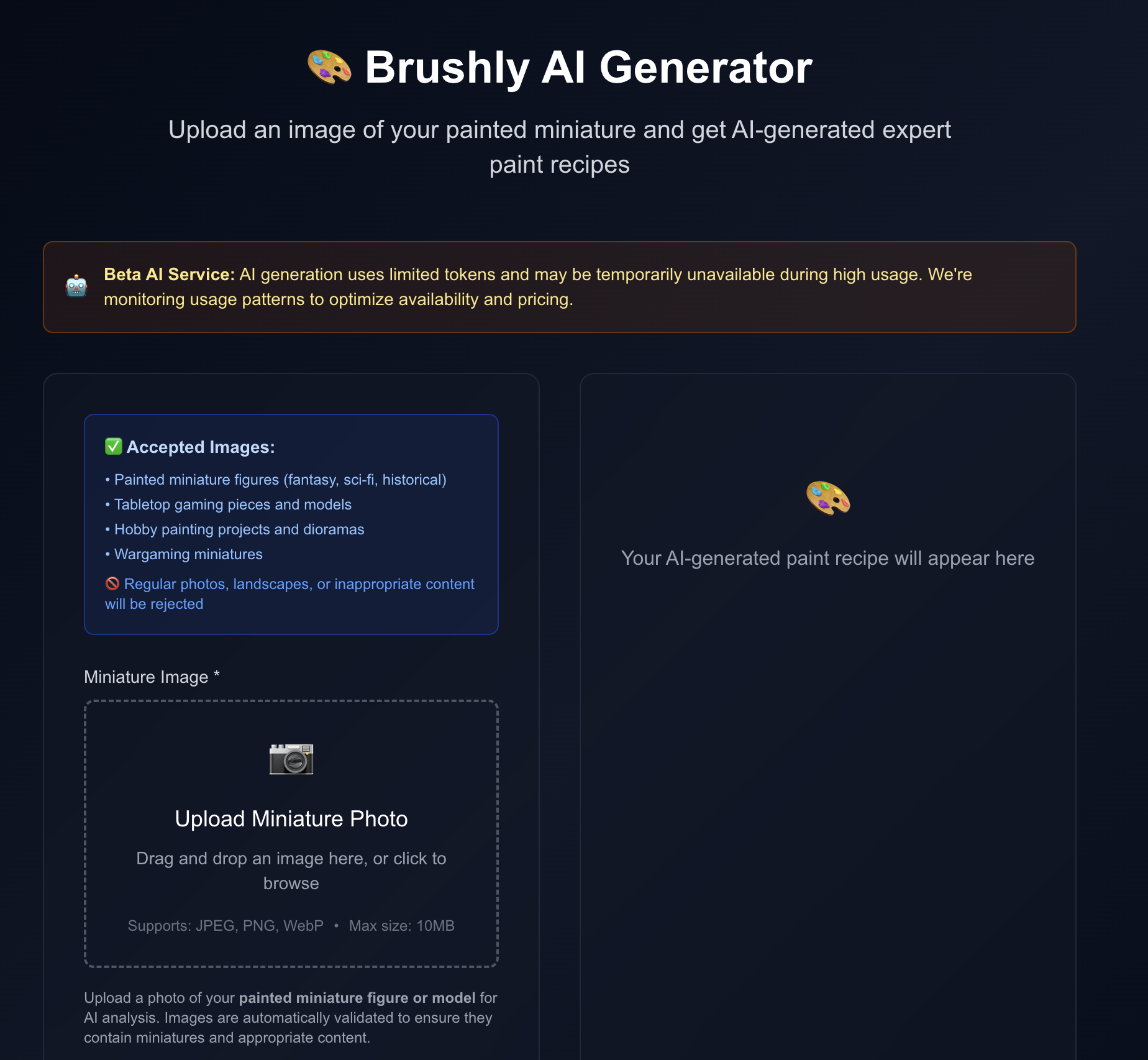
Upload an image and get AI-generated step-by-step painting instructions
Upload an image of a painted miniature and get detailed, step-by-step painting instructions with specific paint recommendations.
How It Works
- 1.Upload Your Image
Take a clear, well-lit photo of the miniature you want to recreate
- 2.AI Analysis
Our AI analyses the colours, techniques, and details in your image
- 3.Get Your Recipe
Receive detailed steps with paint recommendations and techniques
- 4.Save & Check Paints
Save the recipe and check which paints you have in your inventory
💡 Pro Tip
For best results, use images with good lighting and focus. Close-up shots work better than distant ones.
🎯AI Paint Coach
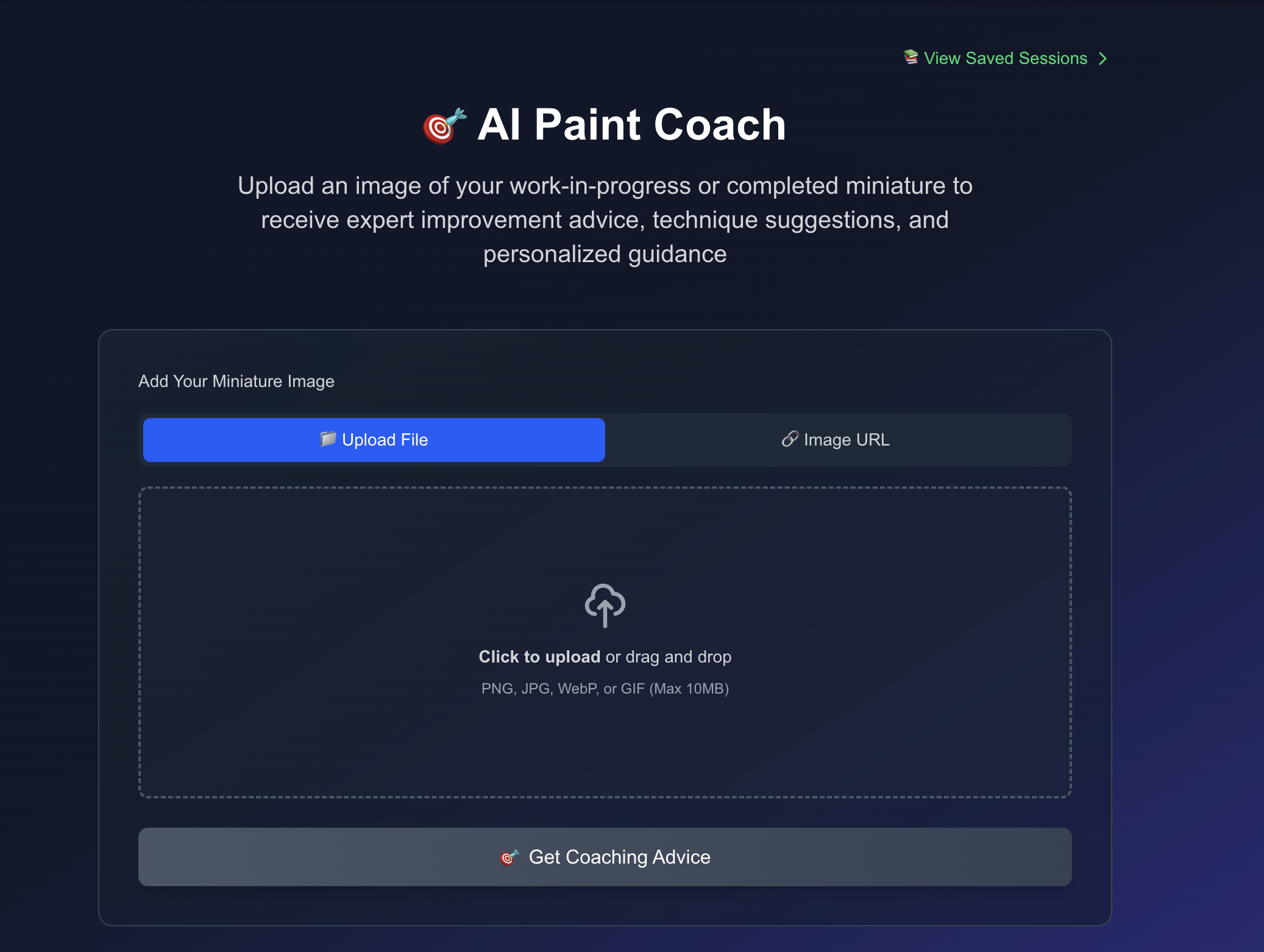
Get personalized feedback and coaching advice for your painted miniatures
Get personalized feedback and improvement suggestions for your painted miniatures, whether they're works-in-progress or completed pieces.
Features
📋 Overall Assessment
Comprehensive evaluation of your painting progress and techniques
✨ Strengths Identification
Recognition of what you're doing well to build confidence
🎯 Improvement Areas
Specific suggestions for techniques to practice and refine
📚 Learning Resources
Curated tutorials and guides for skill development
Save & Export Options
- •Save coaching sessions for future reference
- •Export advice as text files for offline reading
- •Browse all your saved sessions in one place
🎨Paint Inventory Management
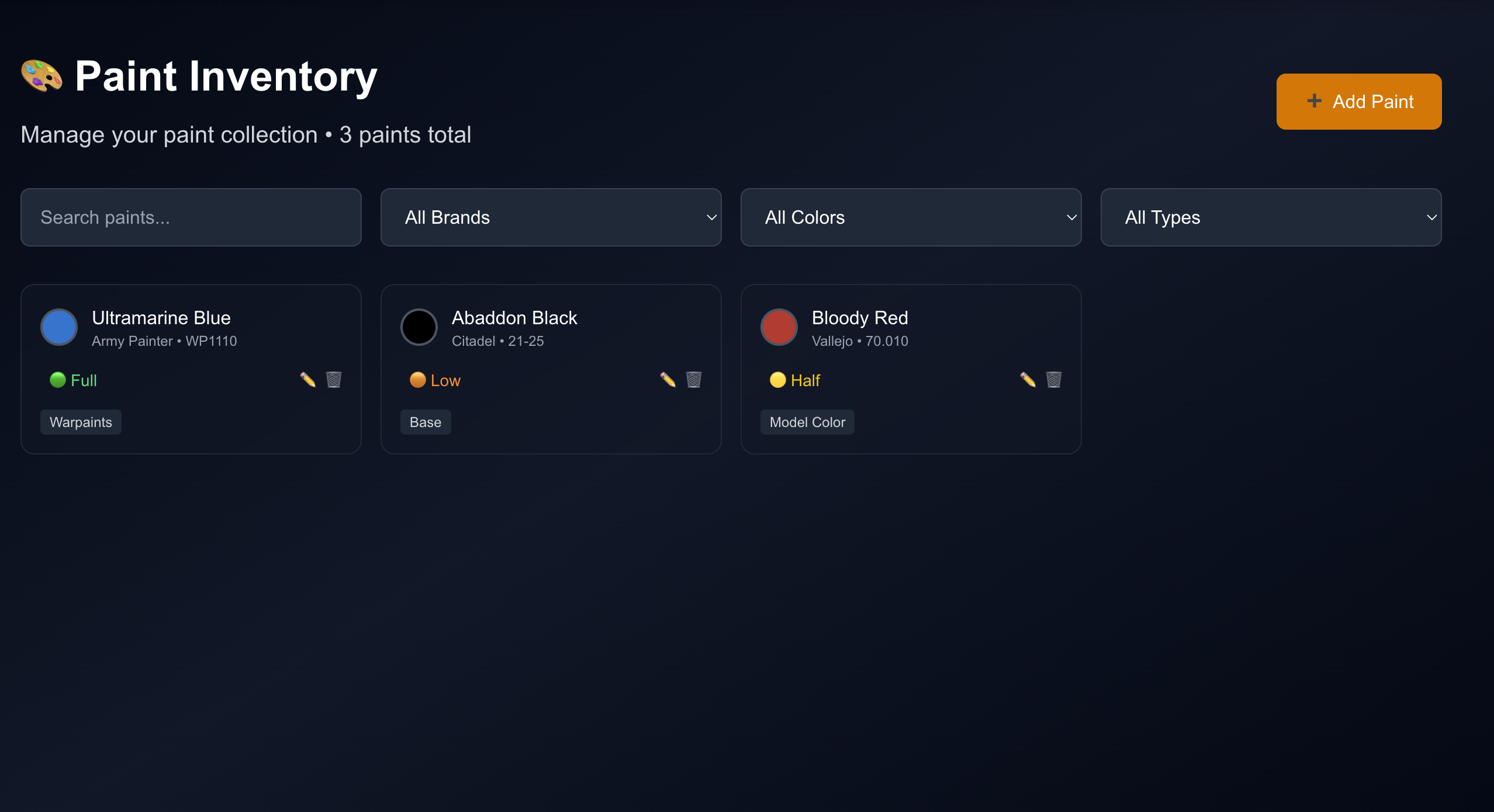
Manage your paint collection with search, filtering, and quantity tracking
Keep track of all your paints and easily see what you have when working on recipes.
Features
- •Smart Paint Search:Quickly find paints by name or brand
- •Quantity Tracking:Monitor paint levels (Full, Half, Low, Empty)
- •Recipe Integration:Check which paints you have for any recipe
- •Multiple Brands:Support for Citadel, Vallejo, Army Painter, and more
How to Add Paints
- 1.Click "Add New Paint" button
- 2.Search for your paint by typing the name
- 3.Select from the suggestions or add manually
- 4.Set the quantity level and any notes
📚Recipe Library
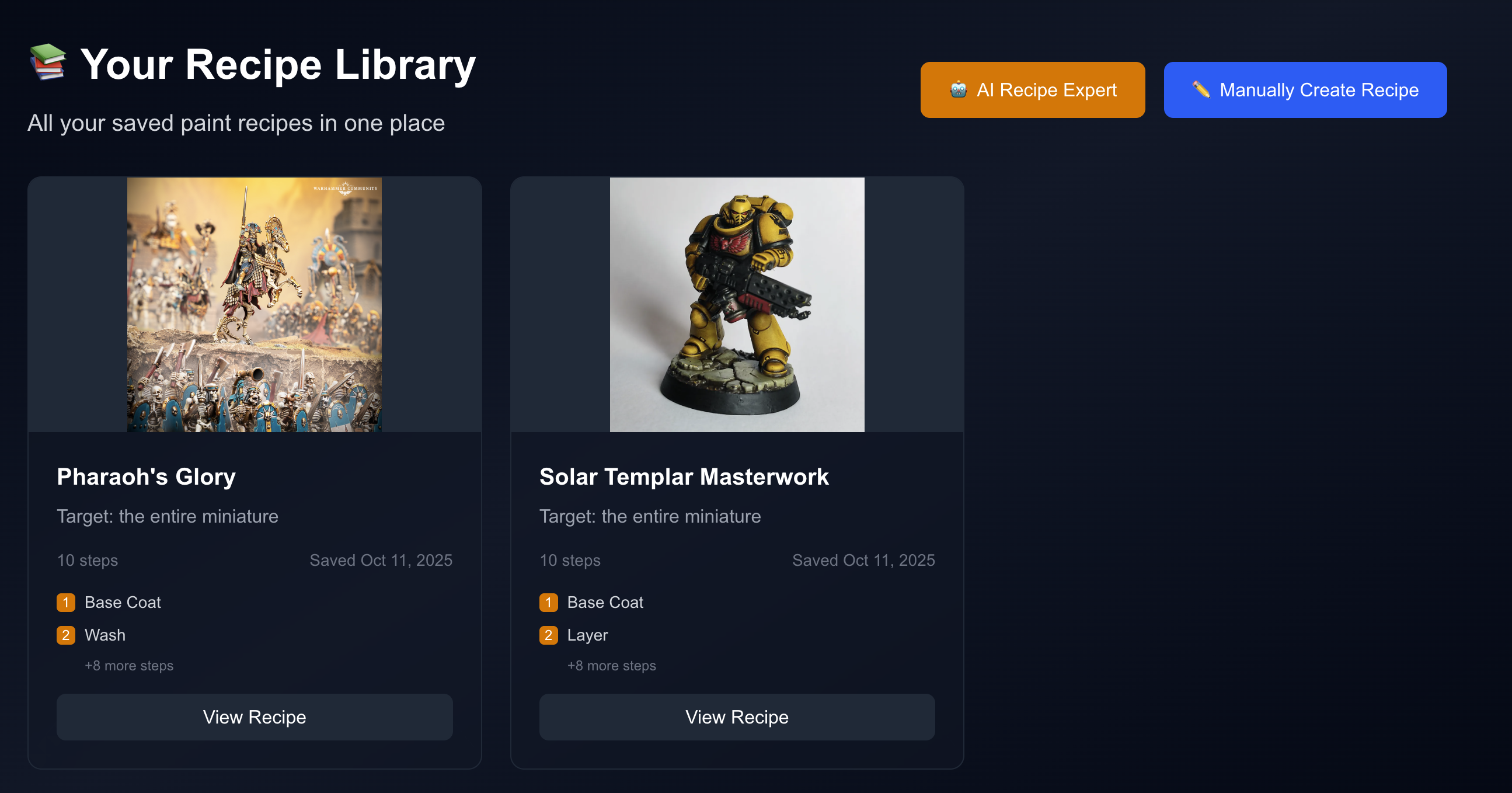
Browse and organise all your saved painting recipes with search and filtering
Access all your saved recipes in one organised location with powerful search and filtering.
Browse & Search
- •View all recipes with preview images
- •Search by name or target area
- •Sort by creation date or name
- •Filter by recipe type (AI vs Manual)
Recipe Details
- •Step-by-step instructions
- •Complete paint lists for each step
- •Paint availability checking
- •Reference images and notes
📝Manual Recipe Creation
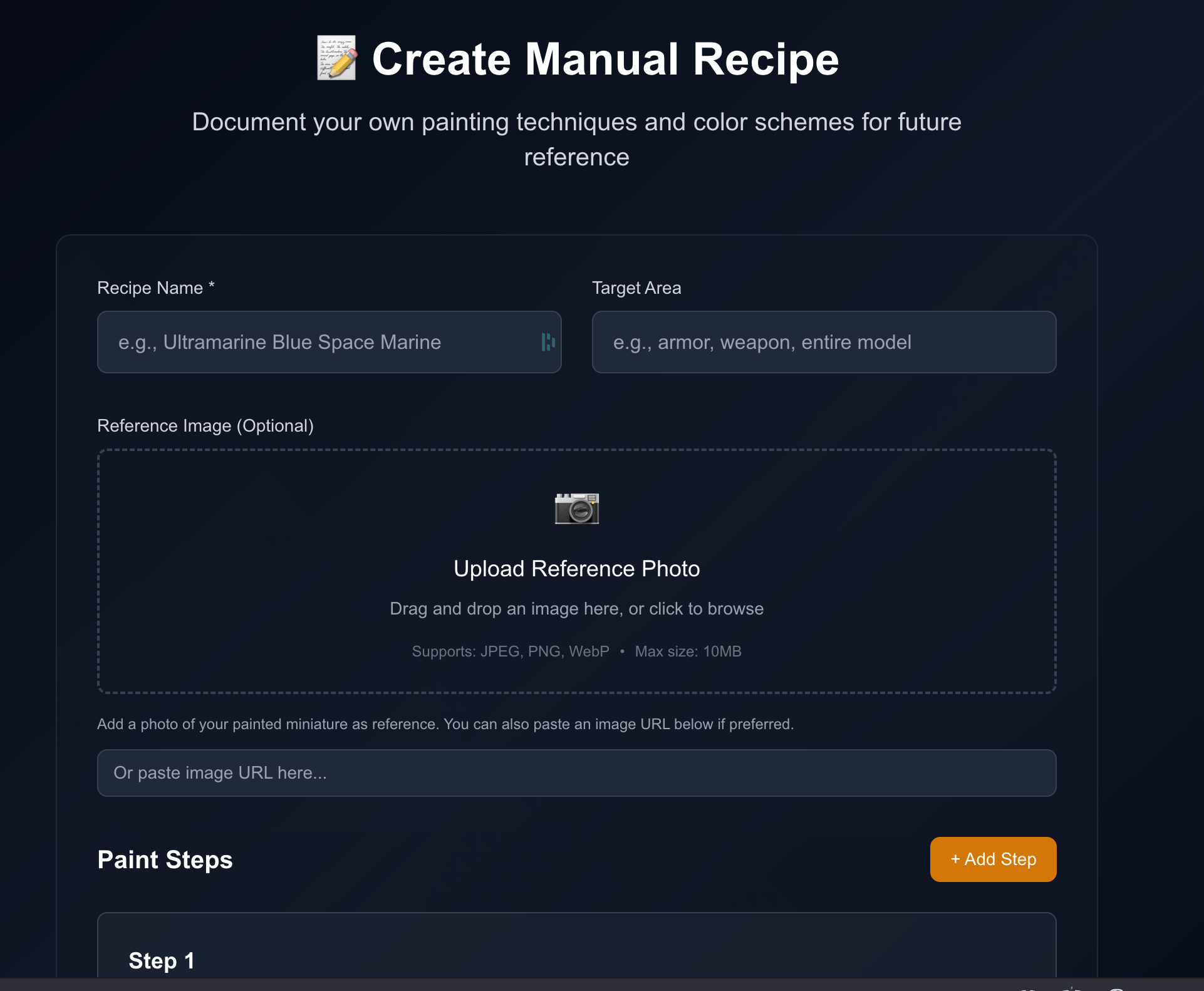
Create and document your own painting techniques and color schemes
Document your own painting techniques and create custom recipes for your favourite schemes.
Creating a Manual Recipe
1. Basic Information
Add recipe name, target area (armor, skin, etc.), and reference image
2. Build Steps
Create multiple steps with techniques, descriptions, and instructions
3. Add Paints
For each step, specify the exact paints and colors needed
4. Save & Share
Save to your library for future reference and easy access
💡Tips & Best Practices
Getting Better AI Results
📸 Image Quality
- • Use good lighting (natural light works best)
- • Take close-up, focused shots
- • Avoid blurry or dark images
- • Include the whole miniature in frame
🎯 Context Matters
- • Clear, uncluttered backgrounds
- • Show the miniature from the best angle
- • Multiple angles can help (take several shots)
- • Include any special effects or details
Organizing Your Work
- •Keep your paint inventory updated for accurate recipe checking
- •Save recipes with descriptive names for easy searching
- •Use coaching sessions to track your improvement over time
- •Export important advice and recipes for offline reference
Making the Most of AI Coaching
- ✓Take photos at different stages of your painting process
- ✓Ask for feedback on specific techniques you're practicing
- ✓Save coaching sessions to track your progress over time
- ✓Follow the suggested tutorials and practice exercises
Ready to Start Your Painting Journey?
Join thousands of painters who are improving their miniature painting with AI assistance